How to Make an AI Zombie Video From Two Photos
A practical walkthrough of photo uploads, zombie and survivor roles, scene settings, generation stages and downloading your MP4.
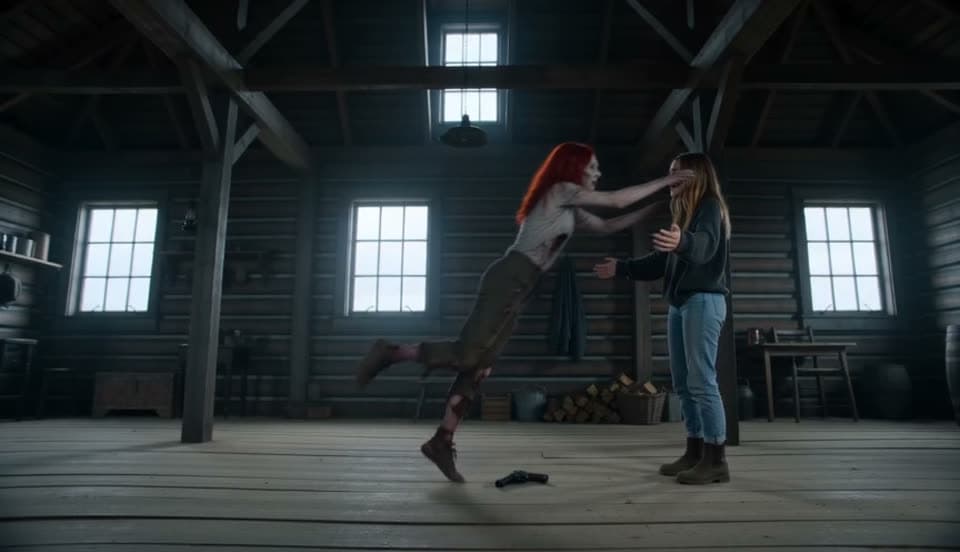
Start with two photographs and a clear choice of roles. zombielove builds a fixed reunion story around your cast, so the preparation is about choosing useful photos and the right settings. This guide follows the journey from your first upload to reviewing the finished file.
Make an AI zombie video →Choose Couple or Pet before adding photos
Couple accepts two adult portraits, including partners or friends. One becomes the zombie and the other remains the survivor. Pet uses one adult portrait and one cat or dog photo. The animal is always the zombie, and the person is always the survivor; select the correct species in the settings.
The dog in the reference video illustrates a dog story. It is not an example of a generated cat, and the external clips do not establish the quality of our current model. Pick your mode for the photographs you actually have.
Prepare files the upload can use
Each photograph should show a single subject, with a visible face and enough detail to recognize them. For a pet, keep its ears, muzzle and distinctive coat markings in frame. A toy held across its mouth or a costume covering its head can obscure the features the model needs.
Accepted files are JPG, PNG and WebP up to 10 MB, with a shortest edge of at least 512 pixels. The service checks the actual file type, size and decodability and removes EXIF during normalization. Passing those checks is a technical requirement, not a judgment that a photo will produce a perfect film.
- Replace blurry, heavily filtered or very dark images.
- Check the Zombie and Survivor labels after choosing files.
- Use only consenting adults and your own cat or dog.
Pick your scene, quality and frame shape
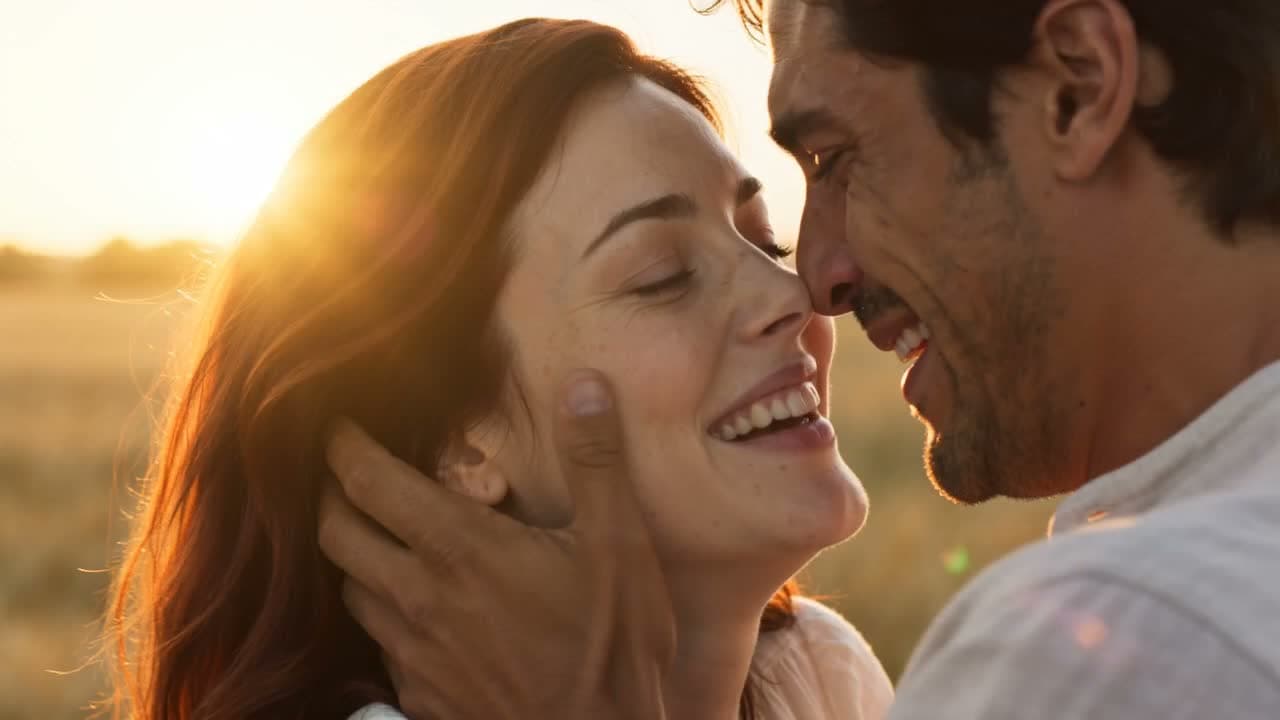
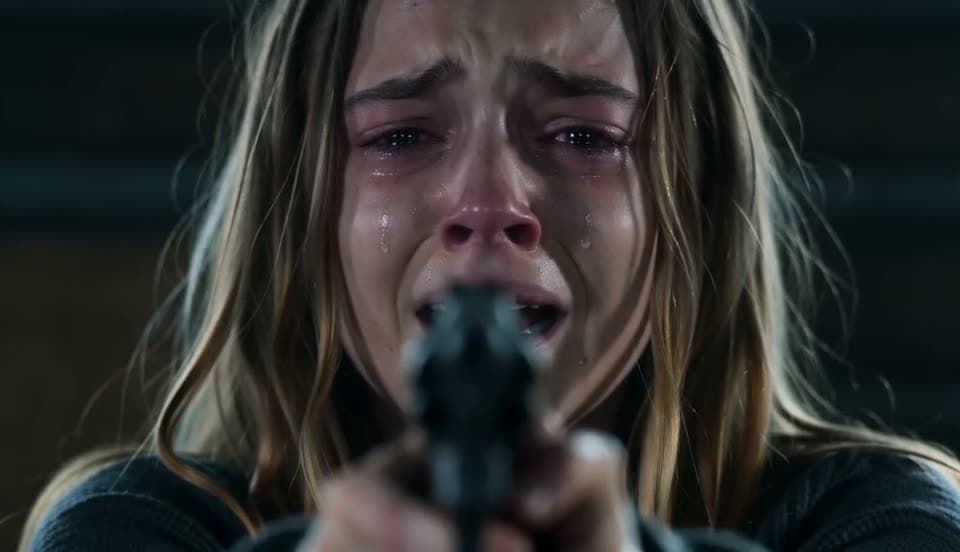
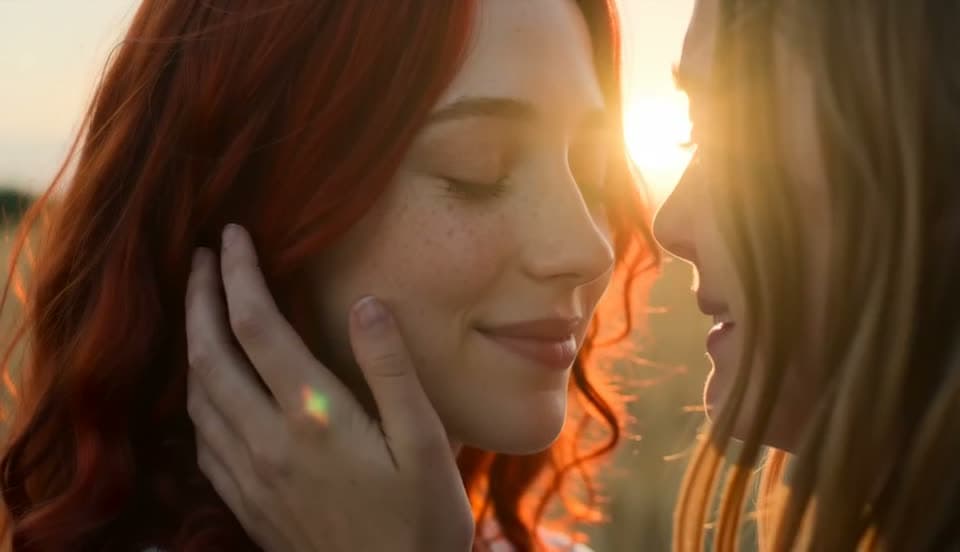
Choose among Cabin, City, Chapel, Market and Bedroom. These are fixed stories rather than a box for custom prompts. Read the theme page if you want to understand the intended cold encounter and warm memory before committing.
Choose landscape 16:9 for a wide presentation or vertical 9:16 for a phone screen. Both Standard 480p and HD 720p target 15 seconds with music. Select the format before generating; stretching a finished landscape file into portrait can distort faces, and cropping can remove part of the approach.
Sign in and follow the actual stage
Confirm your permission to use the photos, then sign in with Google or an email code. During the Google redirect, the unfinished photo draft is temporarily saved in this browser for up to one hour. Returning in a different browser or after that period may require selecting the files again.
Generation requires paid credits. Check Pricing for the one-time option and monthly subscriptions. Once the task is saved, follow its actual stage in the generator or My videos. There is no promised completion countdown, and a temporary status connection problem does not by itself mean the task failed.
Review the result before you share it
Play the complete film with sound. Check that each character matches the intended photo, that the survivor stays human, and that the approach connects to the healthy memory. Technical delivery checks cover the media file; they do not certify likeness, authorization or story quality.
Your photos and video are private by default. Completed videos can be downloaded from My videos within 30 days. A final failed task releases its reserved credits; starting a new generation spends credits again. Save your preferred MP4 locally so you can keep it after the hosted video expires.